Mastering Linux Explained Simply (with Diagrams and Real Code)
Mastering Linux: the essentials in one article — real code, diagrams and concrete steps, extracts from a 42-lesson course.
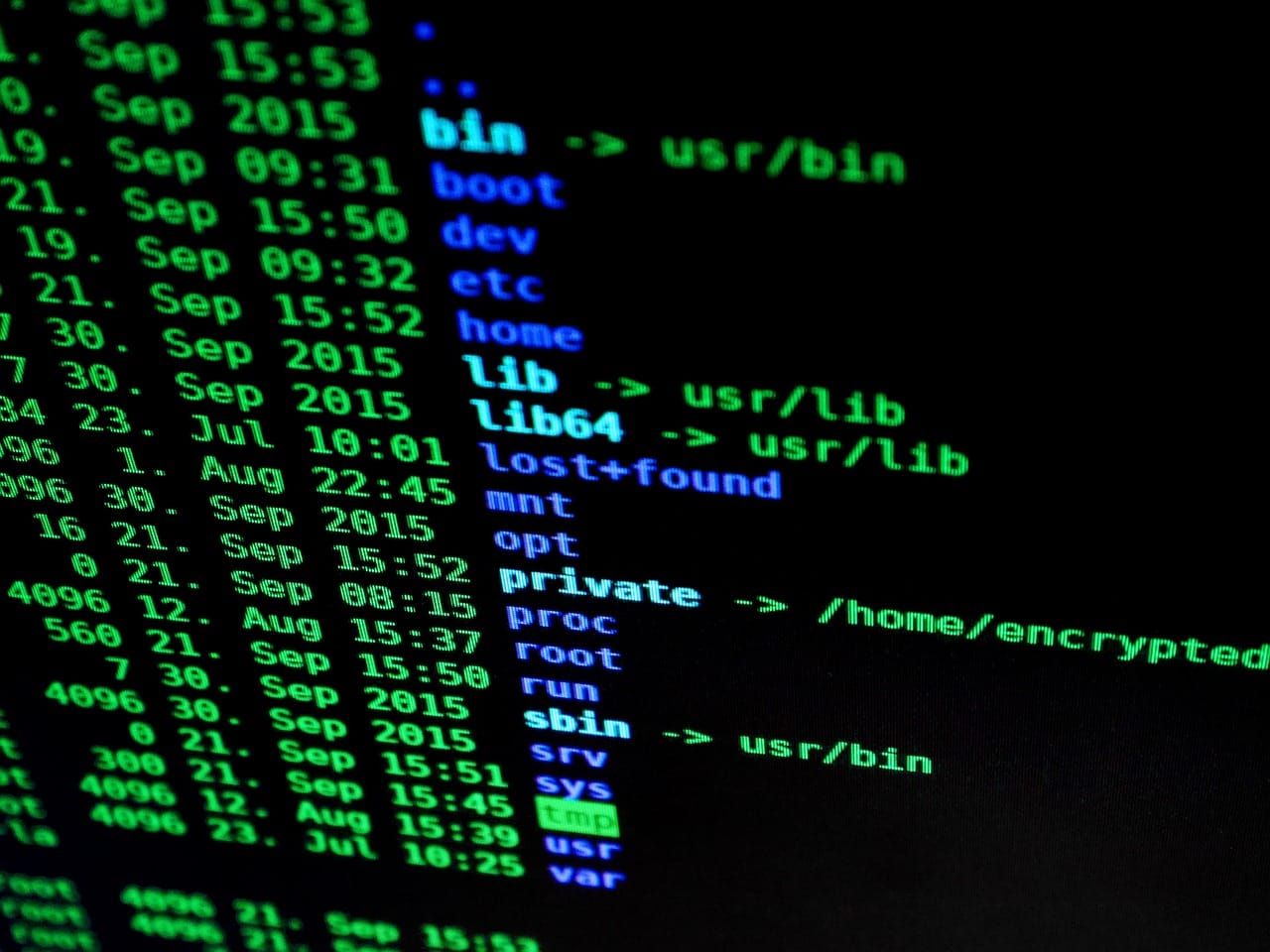
A no-nonsense guide: Mastering Linux broken down with diagrams, concrete examples and tested commands. Everything comes from a structured 11-chapter course — here are the best parts.
- Introduction and Installation
- File System and Navigation
- Permissions and Users
- Text Manipulation and Pipes
- Processes and System Management
Variables, Quotes and Substitution
Learning Objectives
- Write and run a script with a shebang
- Declare and use variables
- Distinguish single quotes, double quotes and no quotes
- Capture command output with
$(...) - Understand environment variables
Your First Script
A Bash script is simply a text file containing commands. The first line, the shebang #!/bin/bash, tells the system which interpreter to use.
| Form | Behavior | Example |
|---|---|---|
Double "..." | Variables are expanded | "Hello $name" → Hello Alice |
Single '...' | Everything is literal, nothing is expanded | 'Hello $name' → Hello $name |
| No quotes | Word splitting on spaces (dangerous) | $file with space = 2 words |
Legacy Backticks
The old form `command` still works but nests poorly. Avoid it in new scripts.
Environment Variables
Some variables are shared across the entire system. By convention they are written in UPPERCASE.
sed and awk — Transforming Text
sed for substitution and line-by-line editing, and awk for extracting and computing by columns.Learning Objectives
- Substitute text with
sed 's/old/new/' - Edit a file in place with
sed -i - Extract columns with
awk '{print $N}' - Filter and compute with awk
- Choose between grep, sed and awk according to the need
sed: The Stream Editor
sed (Stream EDitor) applies a transformation to each line of a stream. Its most common use is substitution with the s/pattern/replacement/ command.
Think "transform"
If you want to modify content (substitution), use sed. If you work with columns, use awk.
Real Combined Example
Navigation — cd, ls, pwd, tree
cd, list with ls and its options, know your location with pwd, and save time with tab completion.Learning Objectives
- Move efficiently with
cdand its shortcuts - Read the output of
ls -lcolumn by column - Show hidden files with
ls -a - Sort and format the output of
ls - Use the Tab key for automatic completion
cd: Moving Through the Directory Tree
The cd (change directory) command is the one you will use most often. It accepts an absolute or relative path and several very handy shortcuts.
tree for the Big Picture
tree -L 2 is perfect for documenting or understanding a project's structure at a glance.
Tab Completion: Your Best Friend
You almost never need to type a full filename. Type the first letters then press the Tab key: the shell completes it automatically.
This article covers the most useful excerpts — the full Mastering Linux course (11 chapters, 42 lessons, corrected exercises and final project) takes you all the way.
./access-the-full-course free course: Mastering Claude CodeFAQ
How long does it take to learn Mastering Linux?
Are there any prerequisites?
Where should I start concretely?
📬 Want to receive this kind of guide every week? Subscribe for free — real code, zero fluff.